Object Updates
The Object Update button (home > Solution > DMS) opens the tabulated DMS Object Updates form, which is docked as a pane in your JewelSuite Geomechanics workspace. The form provides an overview and control on all the available updates from the subscribed solutions. JewelSuite Geomechanics allows you to directly import updates from the subscribed solution or discard individual updates. You can Subscribe (Home > Solution > DMS) to multiple solutions saved to the DMS server and receive the list of all the available updates on objects, properties, functions, models, and volumetric cases for the subscribed solutions. Using the Object Updates pane you can control the notifications shown for specific updates in the JewelExplorer or filter the updates for an object.
You can dock or float the DMS Object Updates form as a pane in your solution workspace. See Customizing your workspace for more information.
DMS Objects Updates form
There are seven columns showing the details of the updates from the subscribed solutions. A set of Control options at the top of the form allows users to take actions on specific updates listed in the table.
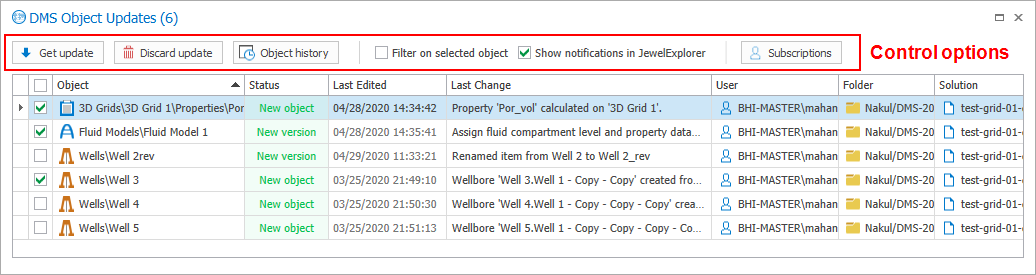
DMS Objects Updates form showing available updates on existing object and new objects, along with the set of control options above the updates table. click to enlarge
Object Name of the object, property, model, function or volumetric case along with its object path in the solution.
Status Shows the current status of the update (see Control options below how to manage changes):
- New version - Update on an existing object in the subscribed solution.
- New object - New object in the subscribed solution.
- Conflict - The object in your current solution saved to DMS has been changed, and the same object is also changed in the subscribed solution.
- Deleted object - The object has been deleted in the subscribed solution.
Last Edited Shows the date and time when the object was last edited.
Last Change Shows a brief description of the changes made to the object or created a new object.
User Name of the user that made the changes to the object(s).
Folder Location of the folder containing the subscribed solution in your DMS server.
Solution Name of the subscribed solution with the object update.
Use the checkbox adjacent to object name to select the object update(s).
Get update Select the update that you want to import to your solution and click on the  button. Once the update is imported it is removed from the object updates form. Optionally, use the context menu of the object in JewelExplorer and select
  Get updates from DMS to automatically import updates to your solution. This option is deactivated in the context menu if there are no updates for the selected object.
Discard update Select the update(s) that you want to discard and click on the  button. This will remove the update from the DMS object updates form.
Object history Select the update and click on  button to open the object information dialog.
Filter on selected object Shows the updates for the object selected in the JewelExplorer. To use this filter, first select the object in JewelExplorer and check the box to filter the updates for that object.
Show notifications in JewelExplorer Check the adjacent checkbox to show notifications in the JewelExplorer for the updates. Objects with updates are visible in the JewelExplorer with a green dot next to object icon. Uncheck the box to hide the update notifications in JewelExplorer. As you hover the cursor over the object, you can see the information for the available update.
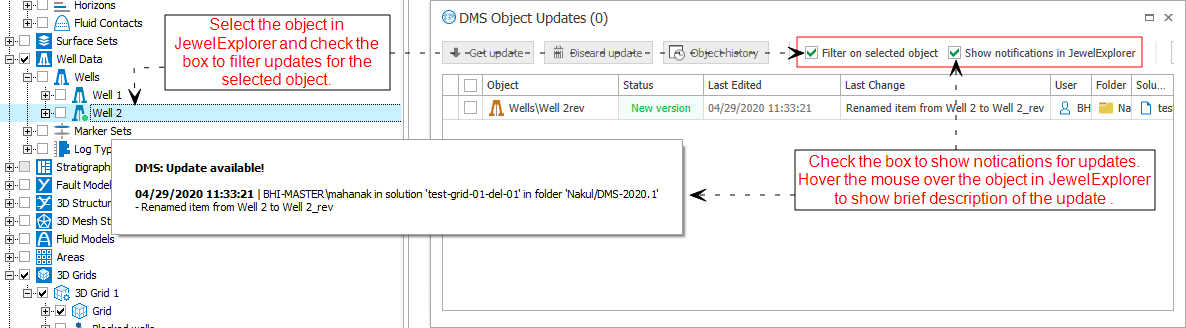
Filtering on updates for object selected in JewelExplorer and controlling visibility of notifications for all the updates. click to enlarge
Subscriptions Opens the Subscriptions form. You can add new folder subscription(s) or remove existing subscription(s).